
How to Edit AI Videos by Chatting
Describe the shot, pick a model, and refine the result in chat — no timeline, no prompt engineering. How chat-based AI video editing works on AI Trend Studio.
Most AI video tools ask you to write a prompt, wait, and hope. If the result is wrong, you rewrite the prompt and start over. Chat-based editing works differently: you describe what you want in plain words, watch the clip, and reply with changes in the same conversation — "make the camera slower", "keep her face the same", "try it at sunset" — until the take is right.
This is how AI Trend Studio works, and this post explains the workflow, what you can change by chatting, and where its limits are.
The workflow in three steps
1. Describe the shot or add a photo
Type what should happen — subject, action, camera move, mood — or attach a photo to use as the opening frame. On most models a second photo can set the closing frame, so you can bracket a shot: start here, end there, and let the model fill in the motion between them.
You do not need to write a structured prompt. The agent turns your description into a detailed prompt for the model. If you already have a prompt you like, paste it in and the agent uses it as the starting point.
2. Pick a model and length
Choose a model — MiniMax H3, Seedance, Kling V4, Gemini Omni or Muse — plus the length, resolution and aspect ratio, or keep the defaults. The price shows before you send, so you know what a take costs before it renders. A video costs from 3 credits and an image from 1 credit, depending on model, length and resolution.
If you are not sure which model to use, let the agent choose. It picks from the same catalog the pricing is based on, and you can override it on the next take.
3. Watch, download or keep refining
The clip renders in a few minutes and plays in the chat. Download it, or reply to adjust the next take. Every reply stays in the same conversation, so the context carries over: the agent remembers the shot, the model and what you already asked to change.
What you can change by chatting
Refinement is the point of the chat format. Useful follow-ups include:
- Camera: "slower push-in", "hold the wide shot longer", "orbit around the subject instead of panning".
- Subject and consistency: "keep the same face", "same jacket as the first take", "make the dog look at the camera".
- Mood and light: "warmer evening light", "rainy and overcast", "more cinematic contrast".
- Motion: "less movement, it looks rushed", "make the turn slower", "add a gentle head tilt".
- Length and framing: "extend it to 10 seconds", "tighter crop on the product".
Each reply generates a new take. The previous takes stay in the conversation, so you can compare and keep the best one.
A concrete example: a photo that starts moving
Take a wedding photo. Upload it as the opening frame and write: "The couple starts a slow first dance: the groom twirls the bride, her dress flows, they laugh and pull close; string lights twinkle and petals drift in the warm evening light." The studio animates the still into a short clip. If the twirl is too fast, reply "slower twirl, hold the smile" and it renders again.
This is the real case, made in AI Trend Studio — original photo first, generated result second. Press play on the clip to watch it right here; the original photo links to its showcase page.
The same photo, animated — first dance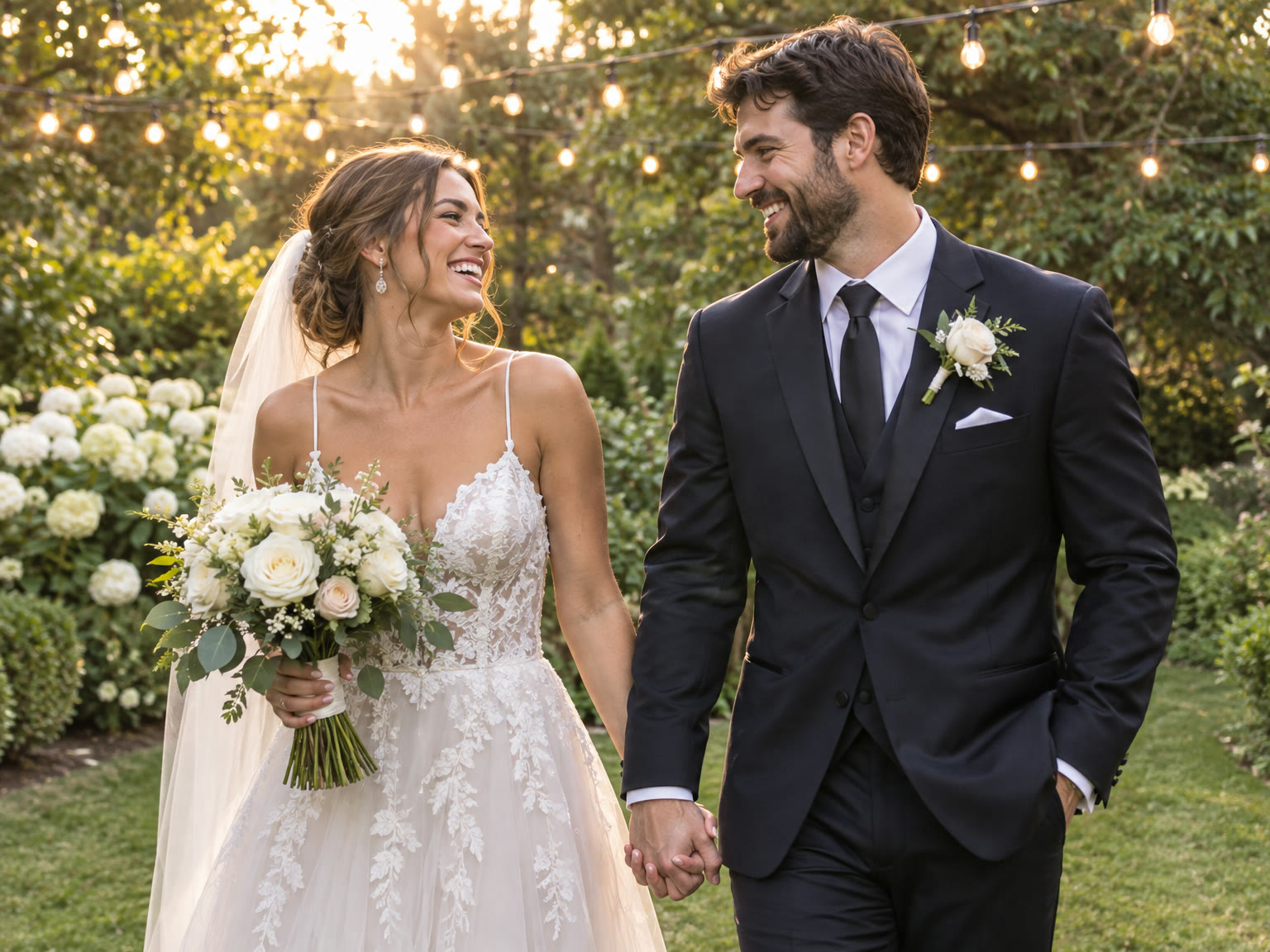
The same pattern works for product shots (a product photo that slowly orbits on a clean background), portraits (a headshot with a slow blink and head turn) and scenes (a street photo with rain and passing traffic). The site's showcases collect real examples with the exact prompt that made each one, so you can open one and reuse its prompt as a starting point.
What chat editing does not do
A few honest limits, so you know what to expect:
- Results vary from one render to the next. The same description can produce different takes. That is normal for video models, and it is why refining in chat matters more than getting the first prompt perfect.
- Hands, fast motion and on-screen text are where current video models slip most often. A simpler action and a second try usually help.
- Photos go in as frames, not as character references. The first photo is the opening frame, and on most models a second photo sets the closing frame. The model will not preserve a person's identity the way a dedicated face-swap tool would.
- Before a first plan or credit pack, clips render at each model's lowest resolution and up to 5 seconds (Muse: 10 seconds), and images carry a small watermark. Any plan or pack unlocks every resolution and length, removes the watermark and adds a commercial license.
When chat editing beats a timeline
A timeline editor is better when you need frame-accurate cuts, layered audio or precise keyframes. Chat editing is better when you need a finished clip fast and you think in words rather than keyframes: social posts, product clips, concept shots, trend formats, and quick iterations on an idea.
If you can describe the shot, you can direct it. Start with a photo or a sentence, watch the first take, and refine it in chat.