
Text to Video AI
Describe a scene in plain words and get a short video clip back. The studio writes a fuller cinematic prompt from your idea, picks from the available video models and renders it.
Type a prompt or upload a photo. We'll take it to the studio.
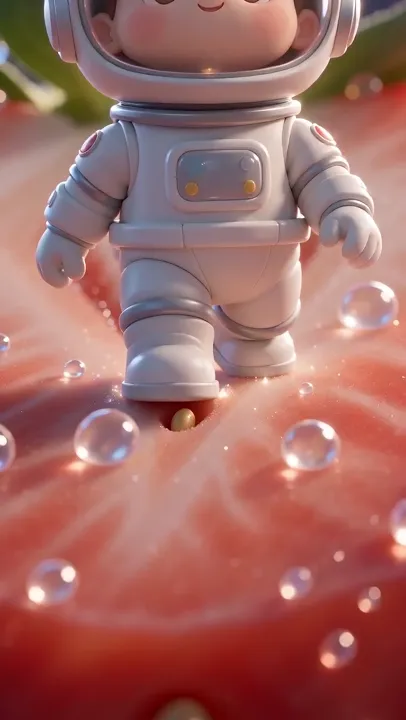
Text to Video sample made with AI Trend Studio
People shown are AI-generated and fictional. Samples were made with AI Trend Studio.
Make a video from text, starting with one sentence
Say who or what is on screen and what happens. You do not need to know prompt syntax; the studio expands a short idea into a detailed shot description.
Top video models in one place
Instead of signing up to several tools, you work in one chat. The composer lists the video models currently available, with their duration and aspect ratio options.
Text to video that you can steer after the first render
Ask for a different angle, a slower pace or another setting in the same conversation, and the studio re-generates from your feedback.
How to use Text to Video
Step 1
Add your input
Write a short description of the scene in the prompt box. The starter prompt is a good template to edit.
Step 2
Generate Text to Video
Send the prompt. The studio opens in video mode, writes a fuller prompt from yours and renders the result. You will be asked to sign in or sign up first if you are not signed in.
Step 3
Refine and download
Ask for changes in the same chat, such as a different mood or pacing, then download the version you like.
Text to Video examples
People shown are AI-generated and fictional. Samples were made with AI Trend Studio.
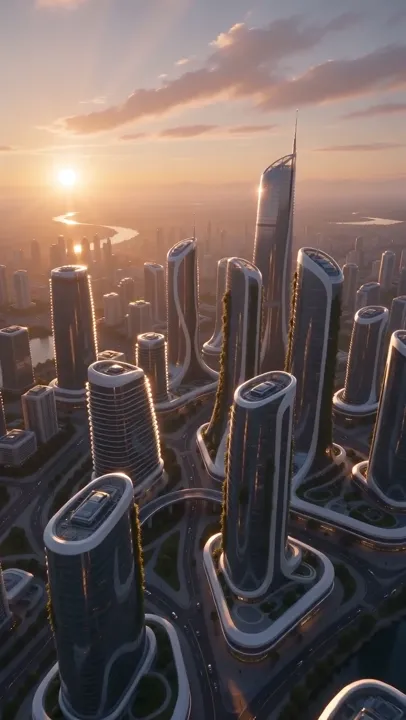
Text to video AI sample 2 (AI-generated)
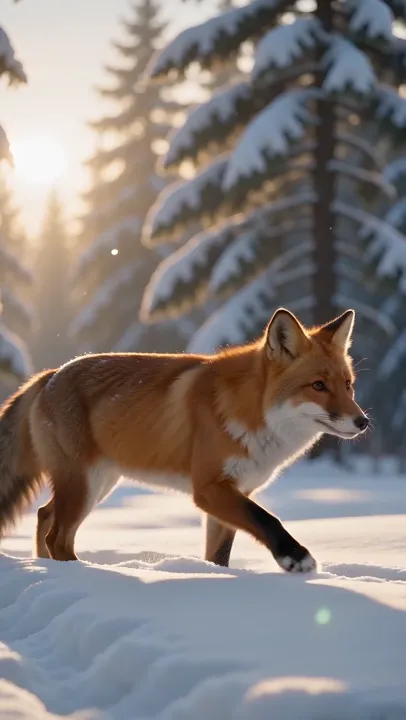
Text to video AI sample 3 (AI-generated)
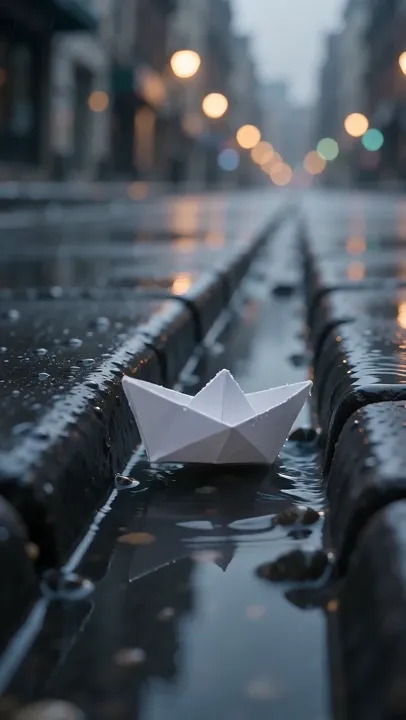
Text to video AI sample 4 (AI-generated)
Text to Video: frequently asked questions
What is Text to Video?
Text to video AI generates a short clip from a written description, with no footage or photo needed.
How do I use Text to Video?
Open Text to Video on AI Trend Studio, describe the scene in the prompt box and send it. An AI agent writes a detailed prompt from yours and renders a 4–30 second video clip, usually within a few minutes; ask for changes in the same chat and download the version you like.
Do I need to upload a photo for Text to Video?
No. Text to Video works from a written description alone; you can still attach a photo if you want a specific face, product or place in the result.
How much does Text to Video cost?
Text to Video on AI Trend Studio is paid in credits: a video costs from 8 credits (a 4-second Seedance 2.0 Mini clip at 480p), typically 9 credits for a 5-second MiniMax H3 clip at 768P. Plans start at $9.90 a month for 80 credits, credit packs at $9.90 for 50 credits. The exact price shows before you send, and failed or stopped renders are refunded.
Is Text to Video free?
You can try it free: the daily check-in on AI Trend Studio gives up to 10 credits a week, enough for a short clip. Until you buy a plan or a credit pack, videos render at the model's lowest resolution and up to 5 seconds (Muse: 10 seconds, its shortest length).
How long can a text to video clip be?
Clip length depends on the model you choose. The composer shows each model’s supported durations, aspect ratios and resolutions before you generate.
Which AI models does Text to Video use?
Text to Video on AI Trend Studio runs on MiniMax H3, Seedance 2.0 Mini, and Muse. Keep the default or pick a model per request; the composer shows each one's price before you send.
Create with Text to Video
Open the studio with a starter prompt, edit it and generate.
Create with Text to Video