
AI video effectHOTNEW
AI Christmas Video: Animate Holiday Photos and Make Santa Video Messages
Turn a Christmas photo into a moving clip, or describe one from scratch: Santa waving from his workshop with a greeting, a pet in a Santa hat by the fireplace, snow swirling in a snow globe, children running to the tree on Christmas morning. Every clip comes with a generated soundtrack.
Type a prompt or upload a photo. We'll take it to the studio.
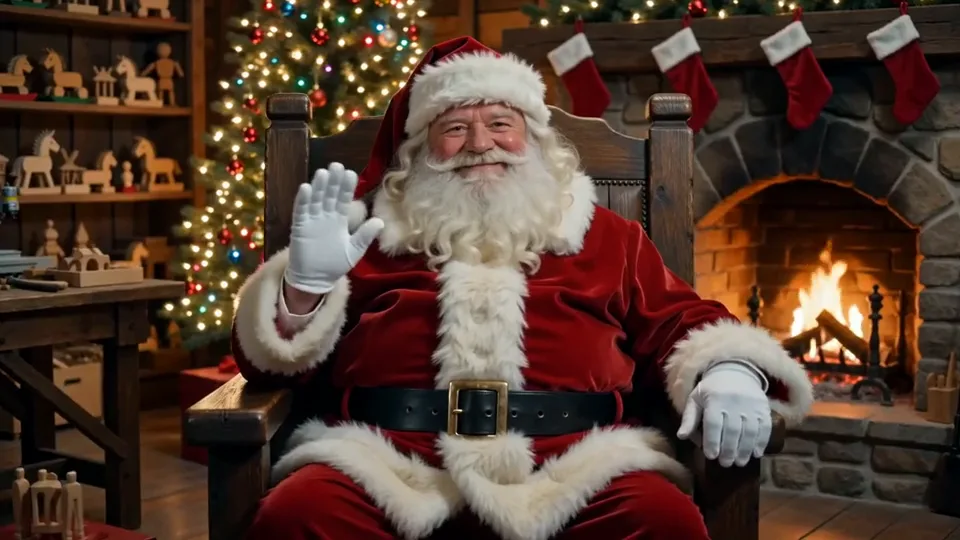
Cozy Christmas video: Santa Claus waves from his armchair by the fire in his workshop, twinkling tree lights, slow gentle push-in, soft jingle bells music.
- You bring
- A photo or a text prompt
- You get
- A clip with sound, 3–30 seconds depending on the model
- Runs on
- 10 video models, MiniMax H3 by default
- Price
- From 3 credits a clip, shown before you send
AI Christmas Video examples
Each "Make one like this" loads a prompt into the box at the top. Add your own photo with +, or send it as text.
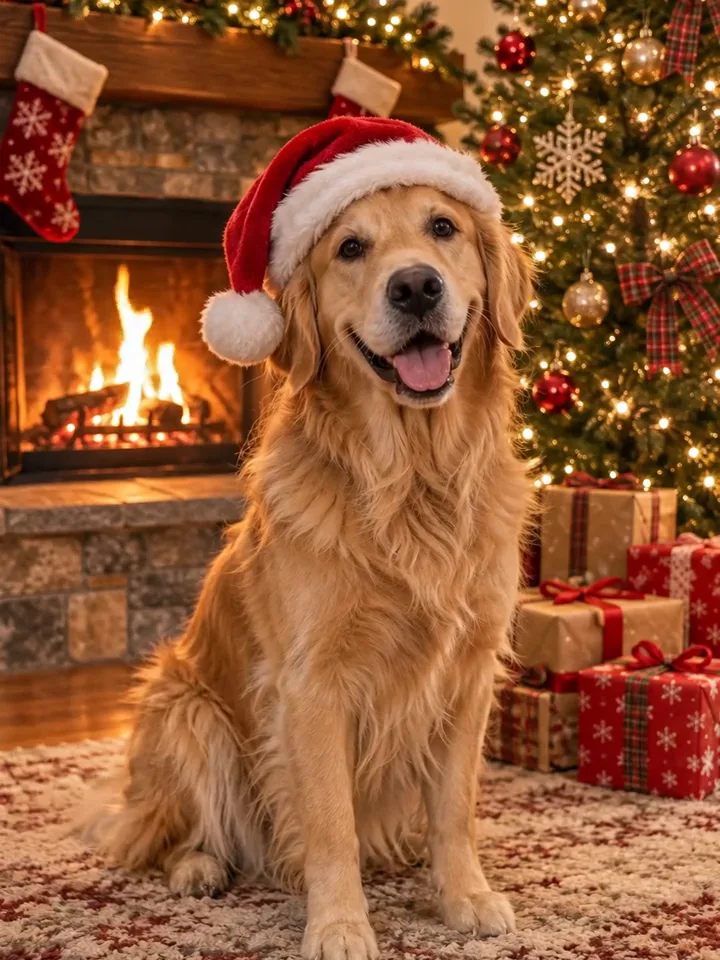
Golden retriever in a Santa hat by a fireplace and a lit tree
Cozy Christmas video: the dog in a Santa hat sits by the fireplace and wags its tail, tree lights twinkle, slow push-in, soft jingle bells music.
Make one like thisRuns on MiniMax H3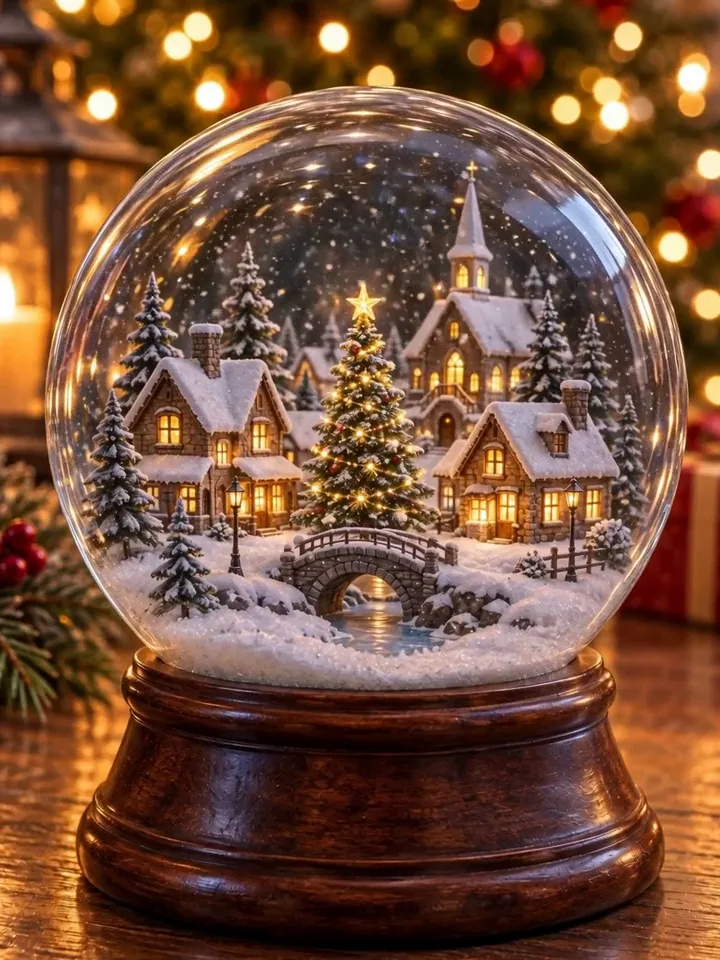
Snow globe with a tiny glowing village on a wooden table
Cozy Christmas video: a snow globe on a wooden table, snow swirling around a tiny glowing village, slow push-in, music-box melody.
Make one like thisRuns on MiniMax H3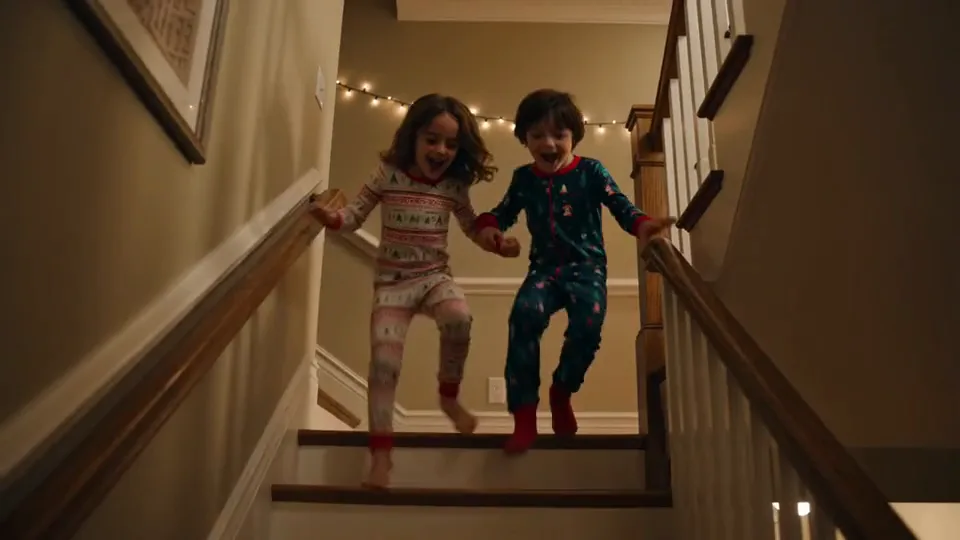
Two children in pajamas on the stairs on Christmas morning
Cozy Christmas video: two children in pajamas run down the stairs on Christmas morning toward the tree and the presents, warm light, joyful music.
Make one like thisRuns on MiniMax H3
Try AI Christmas Video now
Start from a ready-made prompt and see the price before you send. You sign in before your first render.
Why use this AI Christmas Video
AI Santa video with your own greeting
Describe Santa in his workshop and put his line in quotes, for example "Merry Christmas, Emma!". The models with sound can voice it, though names and words are not always pronounced perfectly, so generate a few takes.
Christmas video from a holiday photo
Use your photo as the opening frame: the dog wags its tail, the fireplace flickers, the tree lights twinkle. Make the photo with AI Christmas Photo first if you do not have one.
Holiday clips for cards, posts and stories
Pick 9:16 for stories and Reels or 16:9 for a video card. Only use photos of people who have agreed to it, and keep the result respectful.
What you can make with AI Christmas Video
Santa video messages for kids
A short clip of Santa greeting a child by name, to share on Christmas Eve or in the family chat.
Animated Christmas cards
A snowy village, a snow globe or your decorated living room as a moving card to send instead of a still picture.
Pet and family holiday clips
Your pet in a Santa hat by the tree or a Christmas-morning scene as a festive post for December.
How to make an AI Christmas video
Step 1
Add a photo or describe the scene
Upload a festive photo to animate, such as your pet, your tree or a picture made with AI Christmas Photo, or describe the scene in words. For a Santa message, write the exact line in quotes.
Step 2
Edit the starter prompt
The prompt box starts with a ready-made AI Christmas Video prompt. Change the subject, setting or mood in plain words; the agent turns it into a detailed prompt.
Step 3
Pick model, length and resolution
Choose a video model, a length and a resolution in the composer. The credit price updates before you send.
Step 4
Generate, refine and download
Send it (you will be asked to sign in first if you are not). Ask for changes in the same chat, such as a different mood or pacing, then download the version you like.
Try AI Christmas Video now
Before a first plan or credit pack, clips render at the model's lowest resolution and up to 5 seconds; buying either unlocks every resolution and length.
AI Christmas Video: limitations and tips
Speech is generated with the clip and can be imperfect: names may be mispronounced and lips may not match every word. Keep the line short and generate a few takes.
The studio cannot clone a specific voice or insert your own recording. Santa speaks in a generated voice.
Some models refuse realistic photos of people as the opening frame. If a family photo is refused, describe the scene in words or pick another model.
Each render is a single clip of 3 to 30 seconds, depending on the model (Muse is always 10 seconds).
Photos go in as frames, not as character references: the first photo is the opening frame, and on MiniMax H3, MiniMax H3 Max, Seedance 2.5, Seedance 2.0, Seedance 2.0 Fast, Seedance 2.0 Mini, and Kling V4 a second photo sets the closing frame. Kling V4 Flash, Gemini Omni 1.2 Flash, and Muse take one photo.
Hands, fast motion and on-screen text are where current video models slip most often. A simpler action or a second try usually helps.
AI Christmas Video: frequently asked questions
What is AI Christmas Video?
The AI Christmas Video effect is a video effect that animates a holiday photo, or generates a festive clip from a description, such as a Santa video message or a snowy Christmas scene.
How do I make an AI Christmas video?
Open AI Christmas Video on AI Trend Studio, upload a photo or describe the scene in the prompt box and send it. An AI agent writes a detailed prompt from yours and renders a 3–30 second video clip, usually within a few minutes; ask for changes in the same chat and download the version you like.
How do I make a video message from Santa?
Describe Santa and his setting, such as an armchair in his workshop by the fire, and write what he says in quotes. Keep the line to one or two short sentences, which models voice more reliably than a long speech.
Can I make an animated Christmas card?
Yes. Describe a snowy village, a snow globe or your living room, or upload a holiday picture as the opening frame, and add the motion you want, such as falling snow or twinkling lights. Pick 16:9 or 1:1 for a card and 9:16 for stories. Clips run 3 to 30 seconds, depending on the model.
Can I make a personalized Santa video for my child?
Yes. Describe Santa and write his greeting in quotes with your child’s name, for example "Merry Christmas, Leo! Keep being kind to your sister." The clip is generated with a voice and music. Check the name is spoken correctly and regenerate if it is not.
Can I animate my own Christmas photo?
Yes. Upload it as the opening frame and describe what should move. Pets, trees, rooms and snow scenes animate most predictably. Some models refuse realistic photos of people, so if a family photo is refused, try another model or describe the scene instead.
Do I need to upload a photo for AI Christmas Video?
No, a photo is optional. Upload one to keep a specific subject, or describe the scene in words and AI Trend Studio generates it from the text.
How much does AI Christmas Video cost?
A AI Christmas Video clip costs from 3 credits, typically 10 credits for a 5-second MiniMax H3 clip at 768P. Plans start at $19.90 a month for 200 credits and credit packs at $19.90 for 120 credits; the exact price shows before you send, and failed renders are refunded.
Which AI models does AI Christmas Video use?
AI Christmas Video on AI Trend Studio runs on MiniMax H3, MiniMax H3 Max, Seedance 2.5, Seedance 2.0, Seedance 2.0 Fast, Seedance 2.0 Mini, Kling V4, Kling V4 Flash, Gemini Omni 1.2 Flash, and Muse. Keep the default or pick a model per request; the composer shows each one's price before you send.
Related tools and effects
- AI Christmas PhotoNEWMake an AI Christmas photo
- Photo to Video AITurn a photo into a video
- Text to Video AIMake a video from text with AI
- AI Product Video GeneratorMake an AI product video
- AI Muscle EffectHOTMake an AI muscle video
- AI Dance Video GeneratorHOTMake a photo dance with AI
- Cheek Pinch AI EffectNEWMake a cheek pinch video
- Flash Fashion AIHOTMake an outfit-change video
Ready to try AI Christmas Video?
The starter prompt is already in the box at the top of this page. Edit it, check the price and send.
- Price shown before you send
- Failed renders are refunded
- Refine the result in chat