
AI image tool
Image to Image AI: Turn One Picture into a New One
Start from a picture instead of a blank prompt. A sketch becomes a photorealistic render, a product shot moves to a new scene, a street photo turns into an oil painting. The image you upload sets the layout and the subject; your prompt decides what changes.
Type a prompt or upload a photo. We'll take it to the studio.
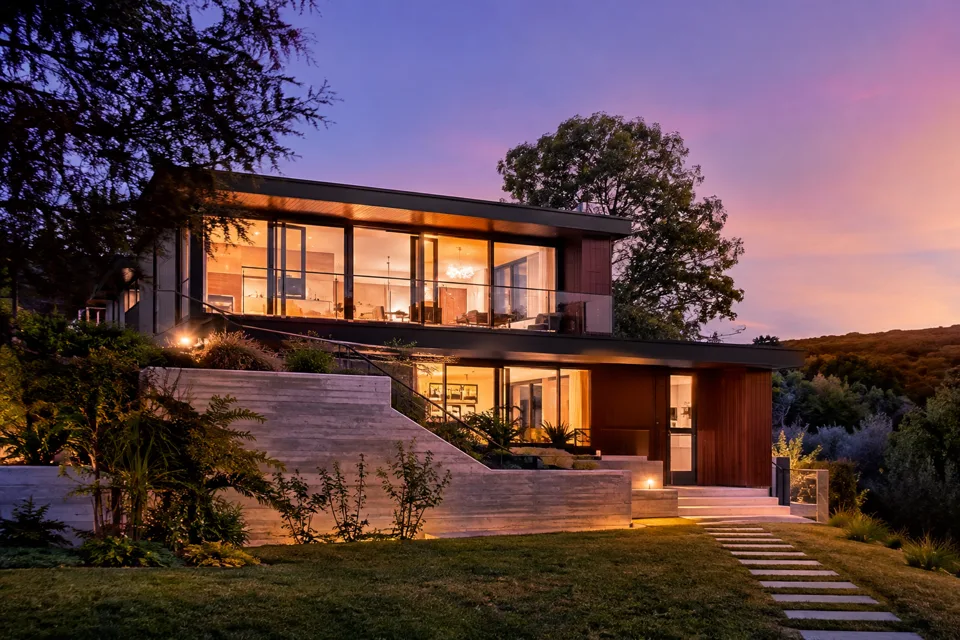
People shown are AI-generated and fictional. Samples were made with AI Trend Studio.
- You bring
- One or more reference images
- You get
- A still image at 1K, 2K or 4K
- Runs on
- 4 image models, GPT Image 2.6 Flare by default
- Price
- From 1 credit an image, shown before you send
Image to Image AI examples
People shown are AI-generated and fictional. Samples were made with AI Trend Studio.
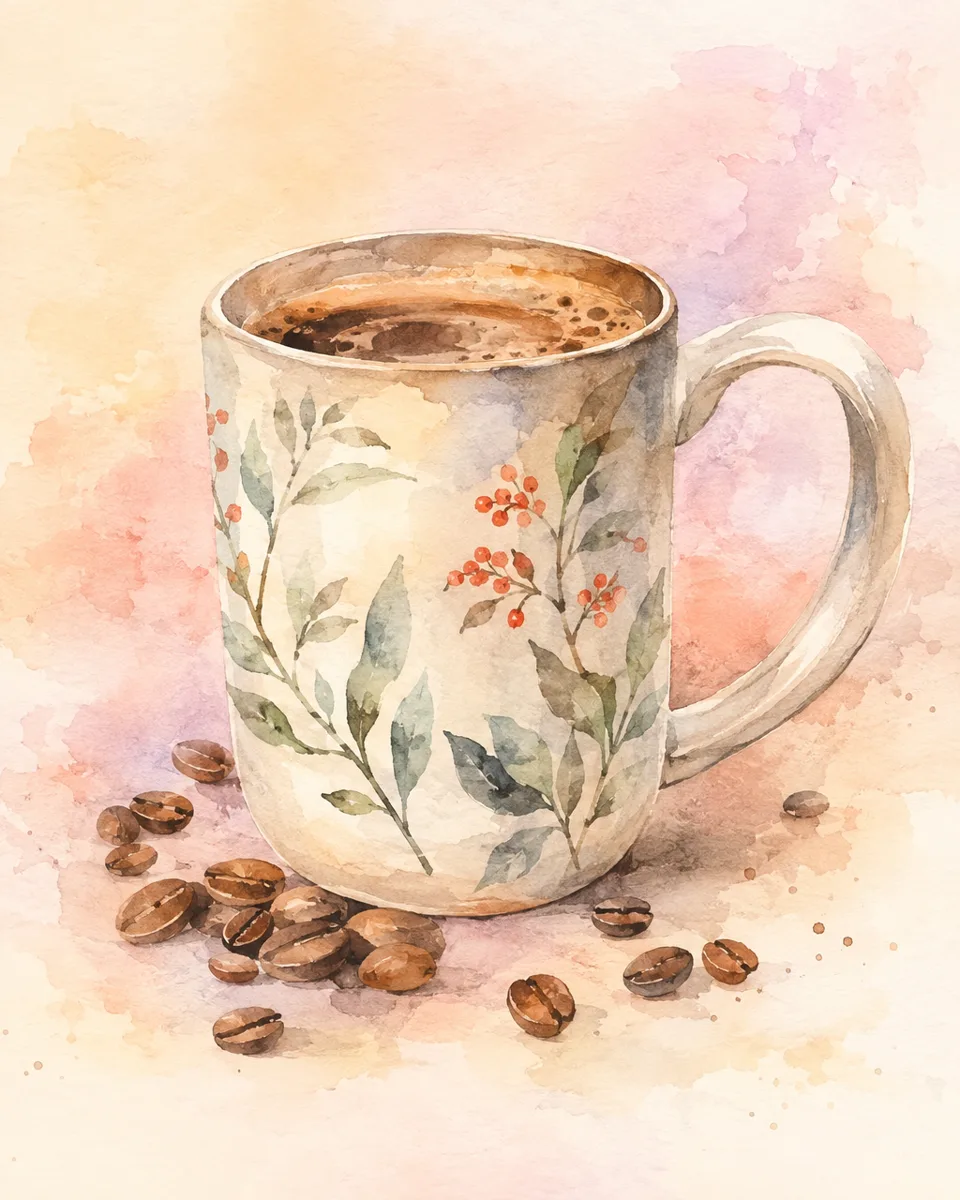
Image to image sample: ceramic mug restyled as a watercolour illustration (AI-generated)
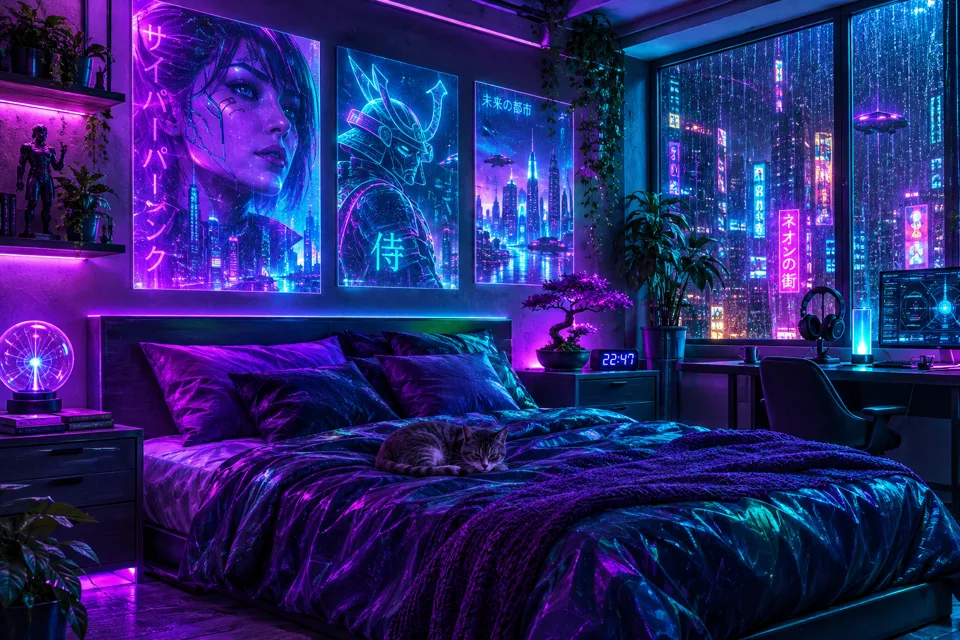
Image to image sample: bedroom restyled with neon cyberpunk lighting (AI-generated)
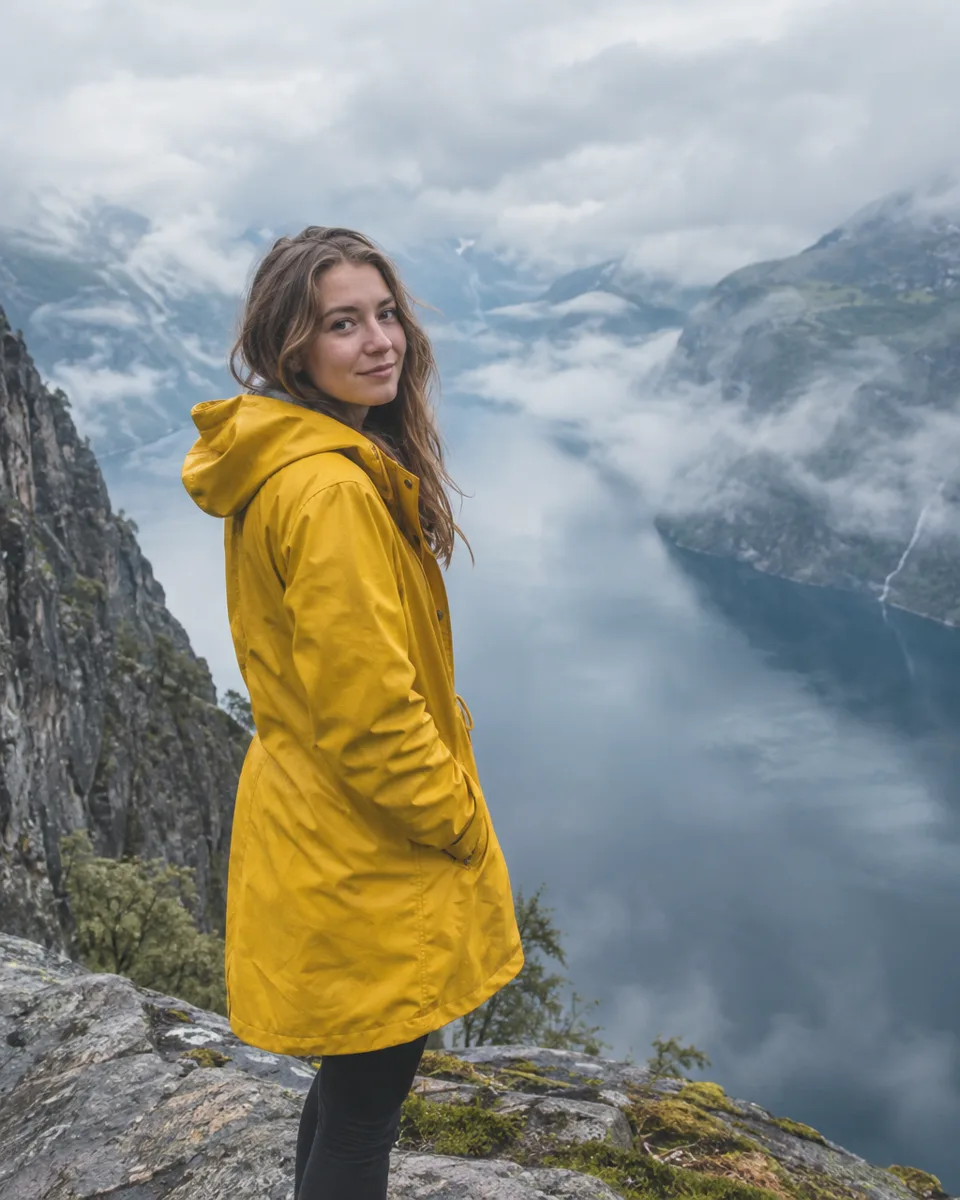
Image to image sample: woman in a yellow raincoat on a cliff above a misty fjord (AI-generated, fictional people)
Real Image to Image AI cases with prompts
Each case was made in AI Trend Studio with the prompt shown. Use a prompt as your starting point: results vary from one render to the next.
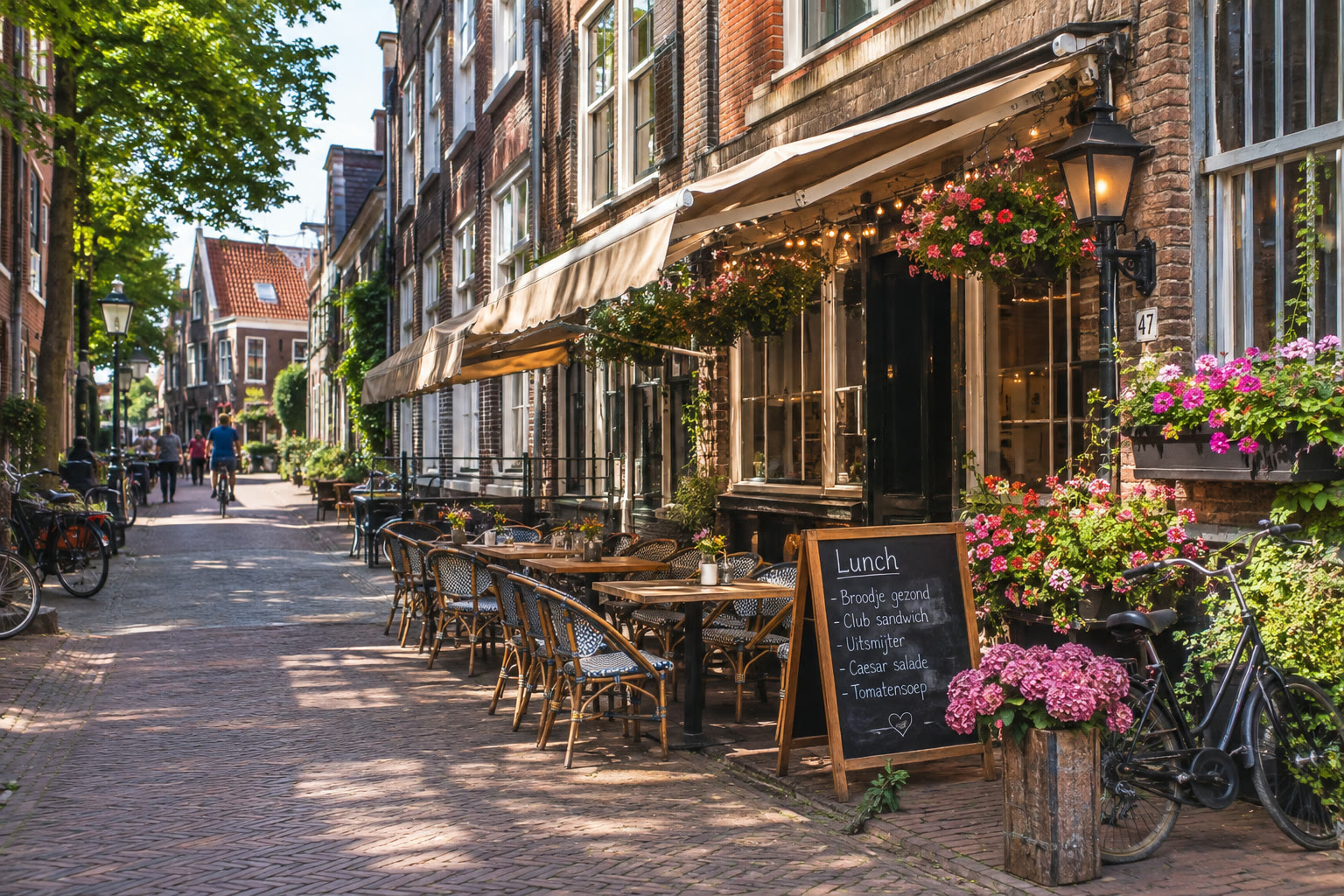
Original 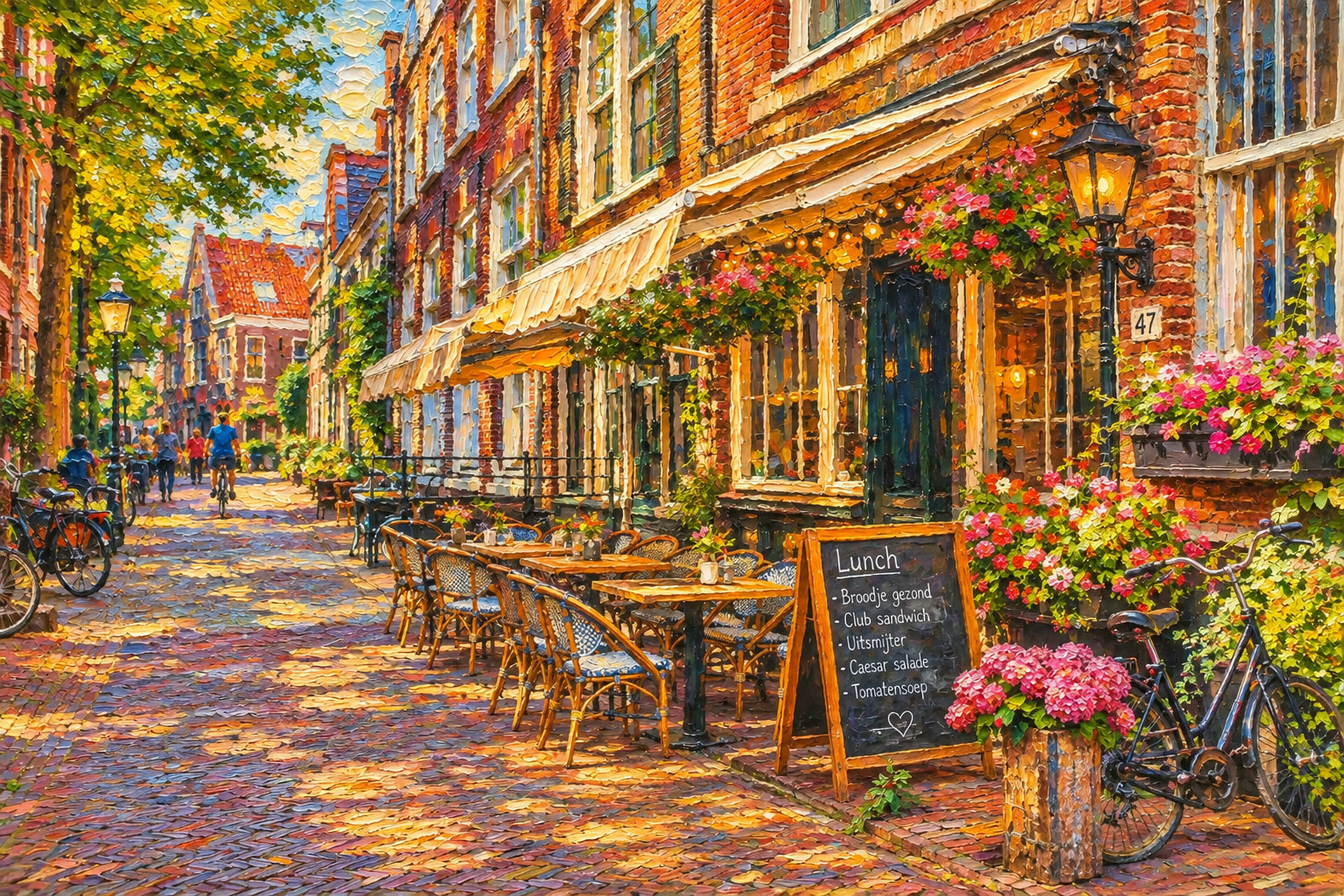
Result Street photo restyled as an oil painting
Prompt
Restyle this photo as an impressionist oil painting with thick visible brush strokes and warm, vibrant colours. Keep the street layout, the cafe terrace, the bicycles and the flower boxes in the same places.
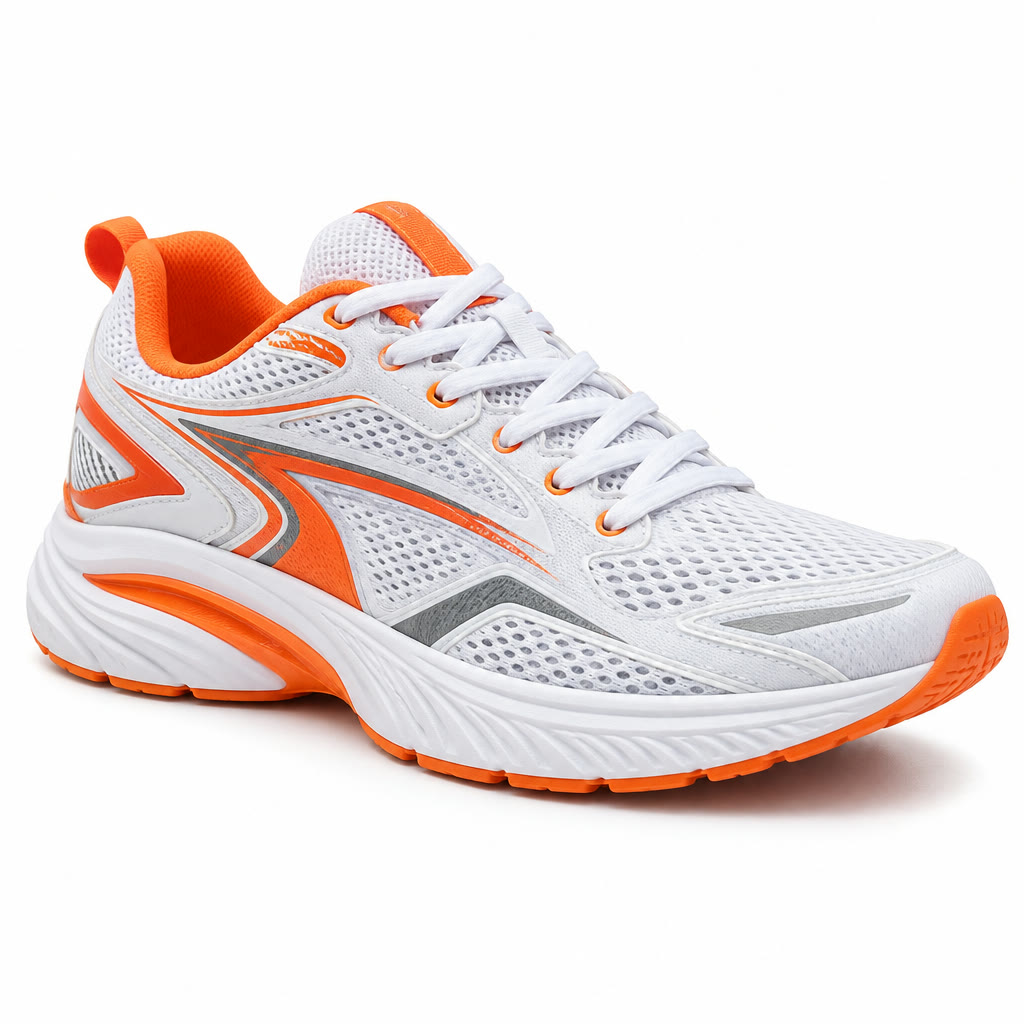
Original 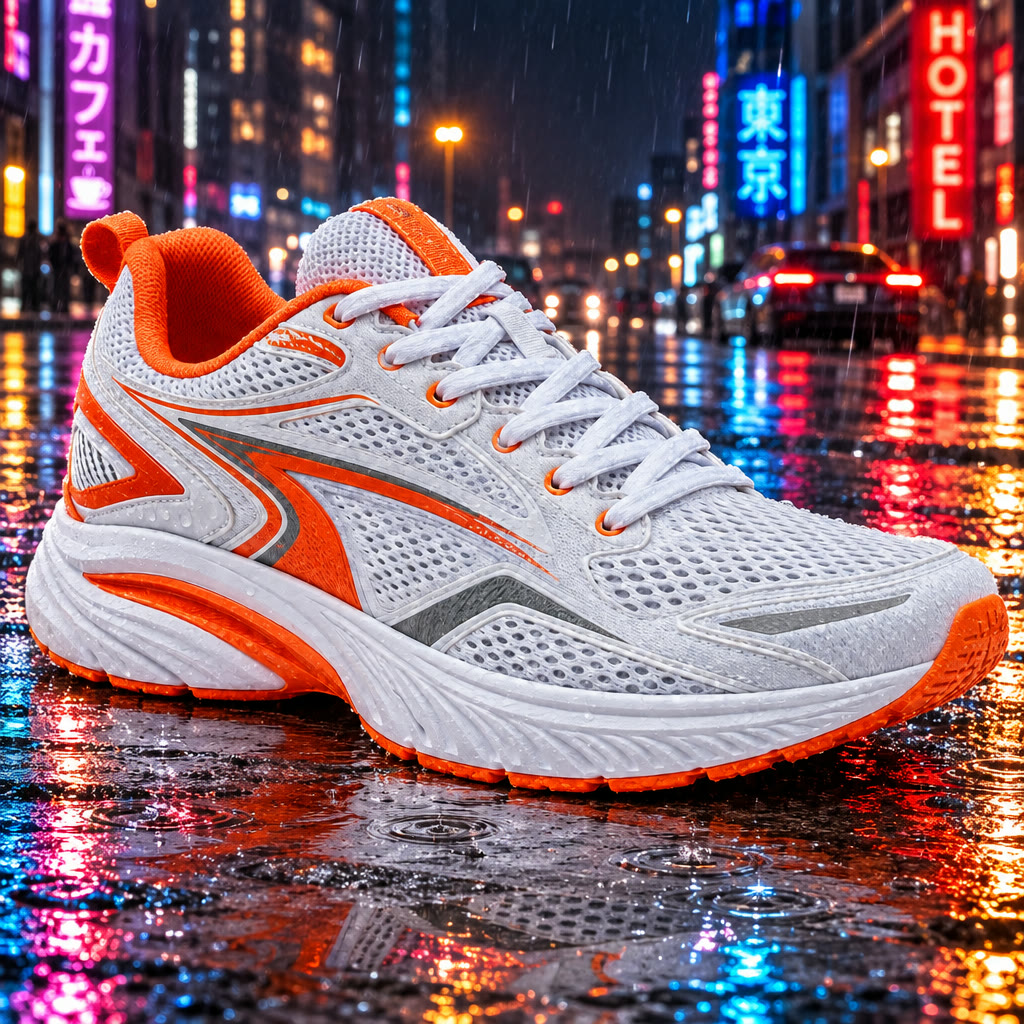
Result Product photo placed in a new scene
Prompt
Place this exact sneaker on a wet city street at night with neon reflections in the puddles and a slight low angle, cinematic advertising photo. Keep the sneaker's shape, colours and details unchanged.
Original 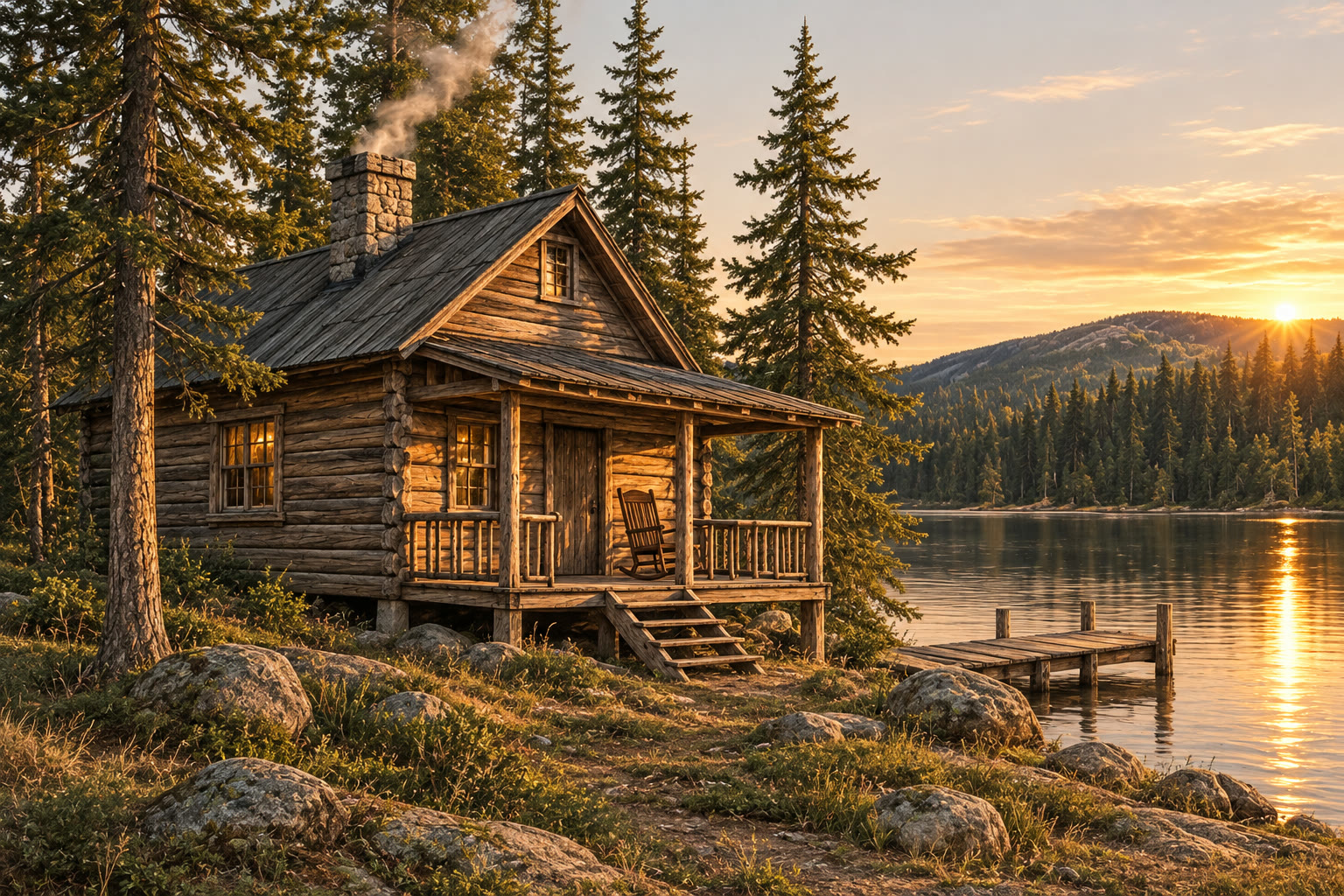
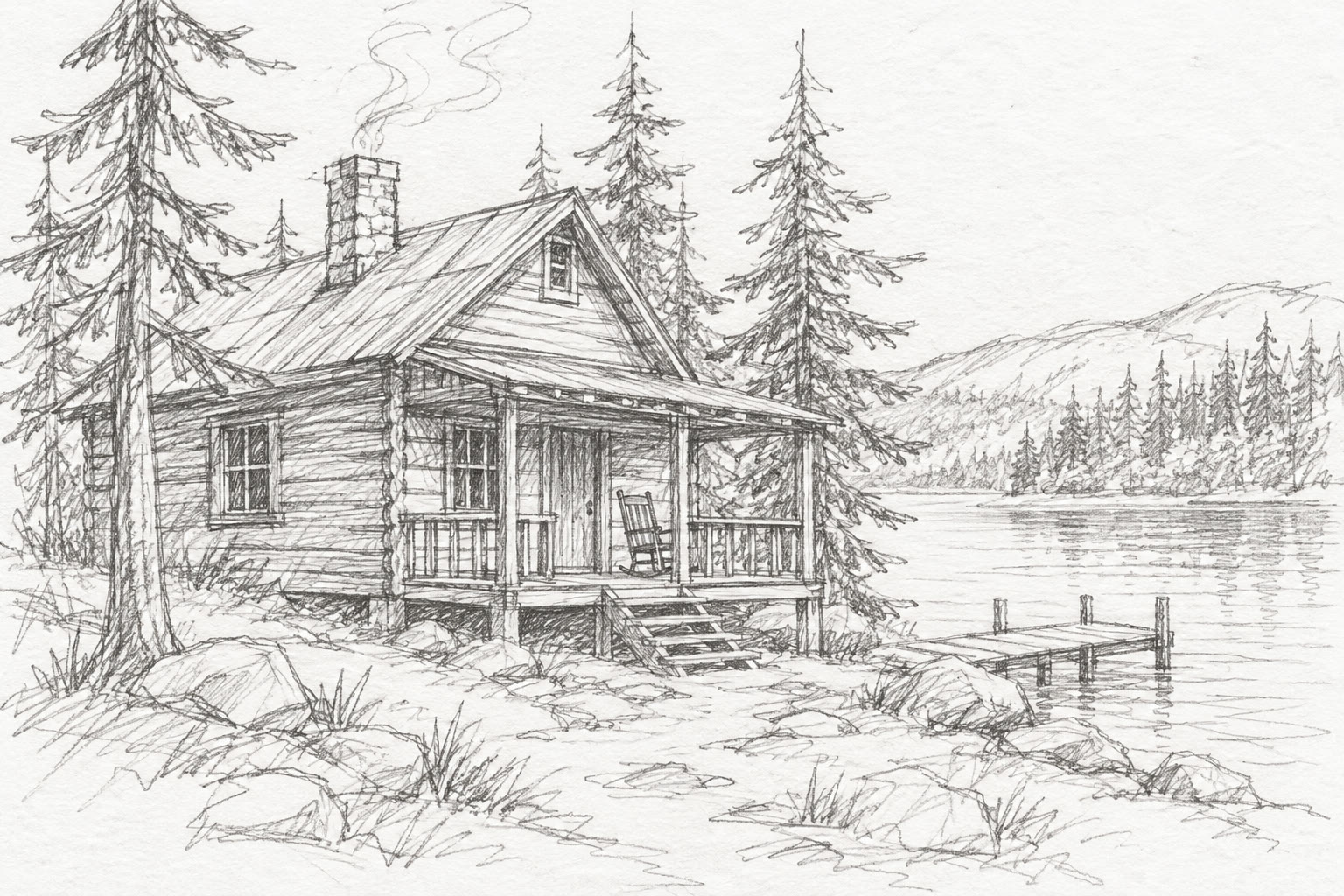
Result Pencil sketch turned into a photorealistic render
Prompt
Use this sketch as the layout and turn it into a photorealistic photo: a wooden cabin with a porch by a calm lake, pine forest, golden hour light. Keep the cabin shape, the porch and the composition from the sketch.
Try Image to Image AI now
Start from a ready-made prompt and see the price before you send. You sign in before your first render.
Models you can use for Image to Image
Pick a model per request in the composer, or keep the default. Open a model to see its own examples and limits.
| Model | Resolution | Inputs | Credits per image |
|---|---|---|---|
| GPT Image 2.6 Flare | 1K, 2K, 4K | Text, or reference images | 1K 1 · 2K 4 · 4K 6 |
| GPT Image 2.6 Sunburst | 1K, 2K, 4K | Text, or reference images | 1K 1 · 2K 5 · 4K 7 |
| Nano Banana Pro | 1K, 2K, 4K | Text, or reference images | 1K 3 · 2K 3 · 4K 4 |
| Nano Banana 2.1 | 1K, 2K, 4K | Text, or reference images | 1K 2 · 2K 2 · 4K 3 |
Credits at each resolution, read from the same catalog the composer charges; a model priced per clip shows its clip length. The exact price for your settings shows before you send.
Why use this Image to Image AI
Image to image AI from sketch to photorealistic render
Upload a rough drawing and get a finished picture that follows its layout, from a cabin by a lake to a product concept.
Keep the product, change the scene
Place the same sneaker, bottle or bag in a new setting for ads and listings. Say what must not change, such as the colours and the logo.
AI image to image with several references
Attach more than one picture and say what each one is for: a subject from one, a setting or a style from another.
What you can make with Image to Image AI
Concept to render
Turn sketches of houses, rooms or products into realistic pictures to share with clients or a team.
Product scenes
Move a plain product shot onto a street, a kitchen counter or a beach without a new photo shoot.
Style changes
Restyle a photo as an oil painting, a watercolour, anime or a pencil sketch while the layout stays put.
How to turn an image into a new image with AI
Step 1
Add your photo
Upload the reference picture: a sketch, a product photo, a room or a scene. To mix pictures, attach each one and say what it is for, such as "the person from image 1 in the setting of image 2".
Step 2
Edit the starter prompt
The prompt box starts with a ready-made Image to Image prompt. Change the subject, setting or mood in plain words; the agent turns it into a detailed prompt.
Step 3
Pick model and resolution
Choose an image model and a resolution (1K, 2K or 4K) in the composer. The credit price shows before you send.
Step 4
Generate, refine and download
Send it (you will be asked to sign in first if you are not). Ask for changes in the same chat, such as a different mood or pacing, then download the version you like.
Try Image to Image AI now
Before a first plan or credit pack, images carry a small watermark; buying either removes it.
Image to Image AI: limitations and tips
The picture is regenerated, so small details can drift. Name what must stay identical, such as a logo, a face or a pattern.
Layouts are followed closely but not measured: for exact geometry, such as plans or technical drawings, check every line.
The result is a flat image, not a layered file or a 3D model.
Lettering, logos and small text can come out misspelt. Put exact words in quotes and check them before you publish.
Likeness is approximate: models keep broad features such as hair, clothing and face shape, but fine details can change, more so in stylised looks.
Image to Image AI: frequently asked questions
What is Image to Image?
Image to image AI generates a new picture from a reference image and a text prompt, keeping what you ask it to keep, such as the composition or the product.
How do I turn an image into a new image with AI?
Open Image to Image on AI Trend Studio, upload a photo or describe the scene in the prompt box and send it. An AI agent writes a detailed prompt from yours and renders an image at 1K, 2K or 4K; ask for changes in the same chat and download the version you like.
Can I turn a sketch into a realistic image?
Yes. Upload the sketch and ask for a photorealistic version that keeps its layout. Rough sketches work; the clearer the main shapes, the closer the result follows them.
Can image to image keep my product exactly the same?
Mostly. Ask it to keep the shape, colours and logo unchanged; small details such as fine print can still drift, so check them and regenerate if needed.
What is the difference between image to image and the AI Photo Editor?
Both start from your picture and run on the same image models. The photo editor is for changing part of a photo while the rest stays; image to image is for making a new picture that follows the reference, such as a sketch turned into a render or a photo turned into a painting.
How many reference images can I use?
Several in one request. The image models accept multiple reference pictures; say in the prompt what each one is for so the model knows which subject, setting or style to take from it.
Do I need to upload a photo for Image to Image?
A photo gives the best result: Image to Image uses it so your subject stays recognisable. You can also describe the scene in words and let AI Trend Studio generate it.
How much does Image to Image cost?
A Image to Image image costs 1–7 credits depending on the model and resolution, 1 credit on the default GPT Image 2.6 Flare at 1K. Plans start at $9.90 a month for 80 credits and credit packs at $9.90 for 50 credits; the price shows before you send.
Which AI models does Image to Image use?
Image to Image on AI Trend Studio runs on Nano Banana Pro, Nano Banana 2.1, GPT Image 2.6 Flare, and GPT Image 2.6 Sunburst. Keep the default or pick a model per request; the composer shows each one's price before you send.
Related tools and effects
- AI Photo EditorEdit a photo with AI
- AI Image GeneratorGenerate an image from text
- Photo to SketchNEWTurn a photo into a sketch
- Image to Video AITurn an image into a video with AI
- Text to Video AIMake a video from text with AI
- Photo to Video AITurn a photo into a video
- AI Avatar GeneratorMake an AI avatar from a selfie
- AI Kiss Video GeneratorHOTMake an AI kiss video
Ready to try Image to Image AI?
Open the studio with a starter prompt, edit it and generate.
- Price shown before you send
- Failed renders are refunded
- Refine the result in chat